Edit or change the group card
Learn how to edit your group card, including changing the card design and updating the message.

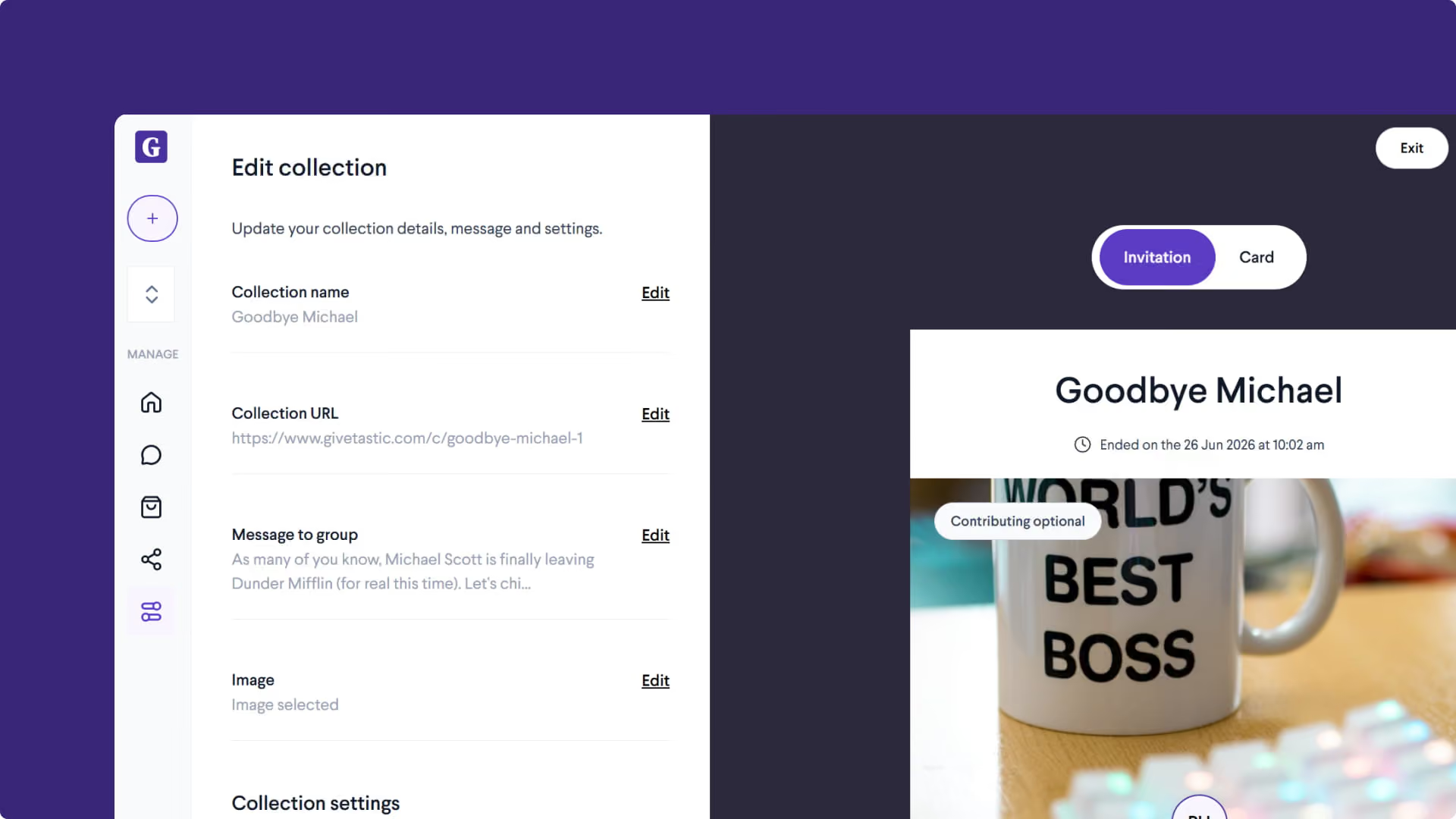
1193542011
How to change your group card design
1. Open your collection
From your dashboard, open the card and collection you want to update.
2. Select Edit
Choose Edit from the sidebar menu.
3. Switch to the Card view
Above the invitation preview, select Card to view the available designs.
4. Browse the card designs
Use the filters to explore different occasions and styles. You can also preview a card before selecting it.
5. Choose your new card
Select the design you want to use. Your new card will save automatically.
6. Personalize the front of the card
Select the green Edit button, choose the text you want to change, and enter your new message. Your changes will save automatically.