Getting started with a group card

Learn how to share your group card, update its details, customize your invitation, and manage everything from one place.
Writing by
Emily Hanson

1208385238

Editing Your Sharing URL

Planning to share your collection or card with a personalised link instead? You can change the URL at any time from your dashboard.
1208437626
  1. Open your collection or card
    Open the collection or card you'd like to update.
  2. Select Edit
    Select Edit from the menu on the left.
  3. Edit the URL
    Locate Collection URL or Card URL in the left-side settings and select Edit.
  4. Save your new URL
    Enter your new URL, then click Save to apply the changes. Once changed, the previous link will no longer work — resend the new one if you've already shared it.

Sharing your card and collection with your group

Need to share your collection with your group? Here are all the ways you can share it.
1193542013

1. Open the share page

Open your card and collection, then select Share from the sidebar menu.

2. Copy or personalize your link

Copy the direct link to your card and collection. You can also edit the URL to make it easier to recognize and share.

3. Share the QR code

Download or share the QR code so people can quickly open your card and collection. This is useful for sharing in person or through platforms such as Slack and Microsoft Teams.

4. Send email invitations

Select Send invitations, then enter the email addresses of the people you would like to invite.

5. Check your invitations

The invitation table shows who has been invited and the delivery status of each email. You can also resend an invitation when needed.

You can access the sharing options at any time by selecting the Share button in the top-right corner of your dashboard.

‍

Update the Invitation Message and Title

Need to update your Collection name or message to the group? Here's how to update your invitation page.
1193542014
  1. Open Edit
    Open your collection and select Edit from the sidebar menu.
  2. Update the Collection name
    Select the edit link next to the Collection name field, enter your new title, and click Save.
  3. Update the message to the group
    Select the Message to group field, update the text, and click Save.

Update the Image on the Invitation Page

Looking to add an image to your invitation page? Here's how to update it.
1193542194
  1. Open Edit
    Open your collection and select Edit from the sidebar menu.
  2. Open the Image field
    Select the edit link next to the Image field, then click Change.
  3. Choose or upload an image
    Choose an image from the gallery, or upload your own personalised image.
  4. Crop and save
    Crop the image to suit your page, then click Done. Your image will update and save automatically.

Extending the end date of your collection

Need more time? This video shows you how to extend your collection end date or end your collection early whenever you need to.
1193542010

1. Open your collection

From your dashboard, open the card and collection you want to extend.

2. Select Edit

Choose Edit from the sidebar menu.

3. Open Collection Settings

Find the Collection Settings section and select the edit link.

4. Choose a new end date

Select the new date and time you would like your collection to remain open until.

5. Save your changes

Save the updated settings. Your card and collection will now stay open until the new end date.

‍

Edit or change the group card

Learn how to edit your group card, including changing the card design and updating the message.
1193542011

1. Open your collection

From your dashboard, open the card and collection you want to update.

2. Select Edit

Choose Edit from the sidebar menu.

3. Switch to the Card view

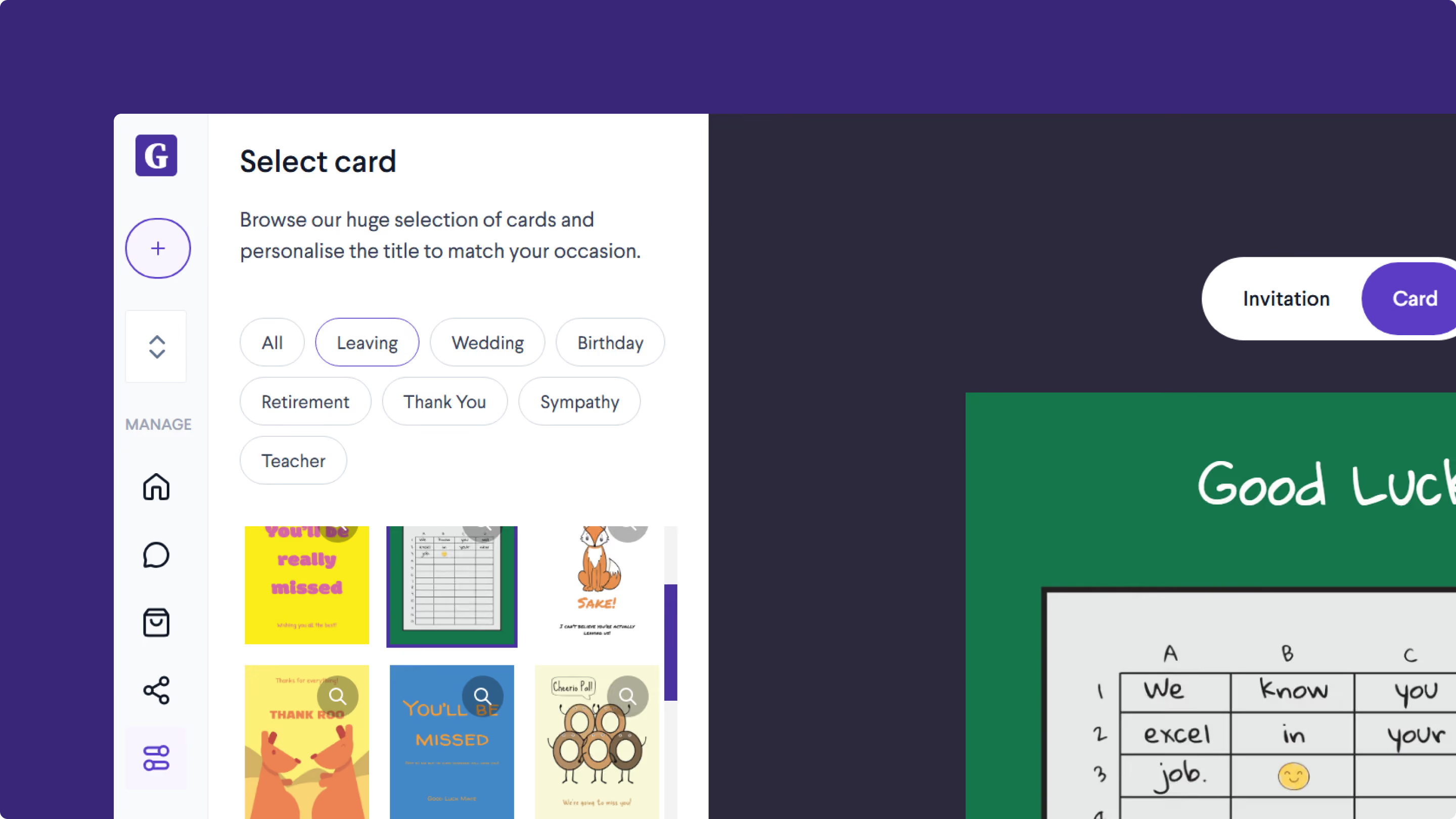
Above the invitation preview, select Card to view the available designs.

4. Browse the card designs

Use the filters to explore different occasions and styles. You can also preview a card before selecting it.

5. Choose your new card

Select the design you want to use. Your new card will save automatically.

6. Personalize the front of the card

Select the green Edit button, choose the text you want to change, and enter your new message. Your changes will save automatically.

‍

Pool money.
Group cards
Send gifts.

Givetastic is the only platform that lets you do it all. Start gifting today!